Client Experience
Building connections with guests through personalized touchpoints.
In this page
December 3rd, 2025
Empowering Travel Advisors
A Welcoming Experience
By providing dedicated spaces for advisors to communicate directly with guests, this section addresses the challenge of creating authentic connections in digital environments. Client Experience helps advisors establish credibility, set expectations, and demonstrate their commitment to exceptional service—building trust and encouraging engagement at every stage of the guest journey.
December 3rd, 2025
Contact Page Note
Personal Connection Point
Without context, a contact form can feel impersonal and transactional. The Contact Page Note card gives travel advisors a prominent space to share their story, credentials, and approach—right where guests are considering whether to reach out.
Progress Disclosure
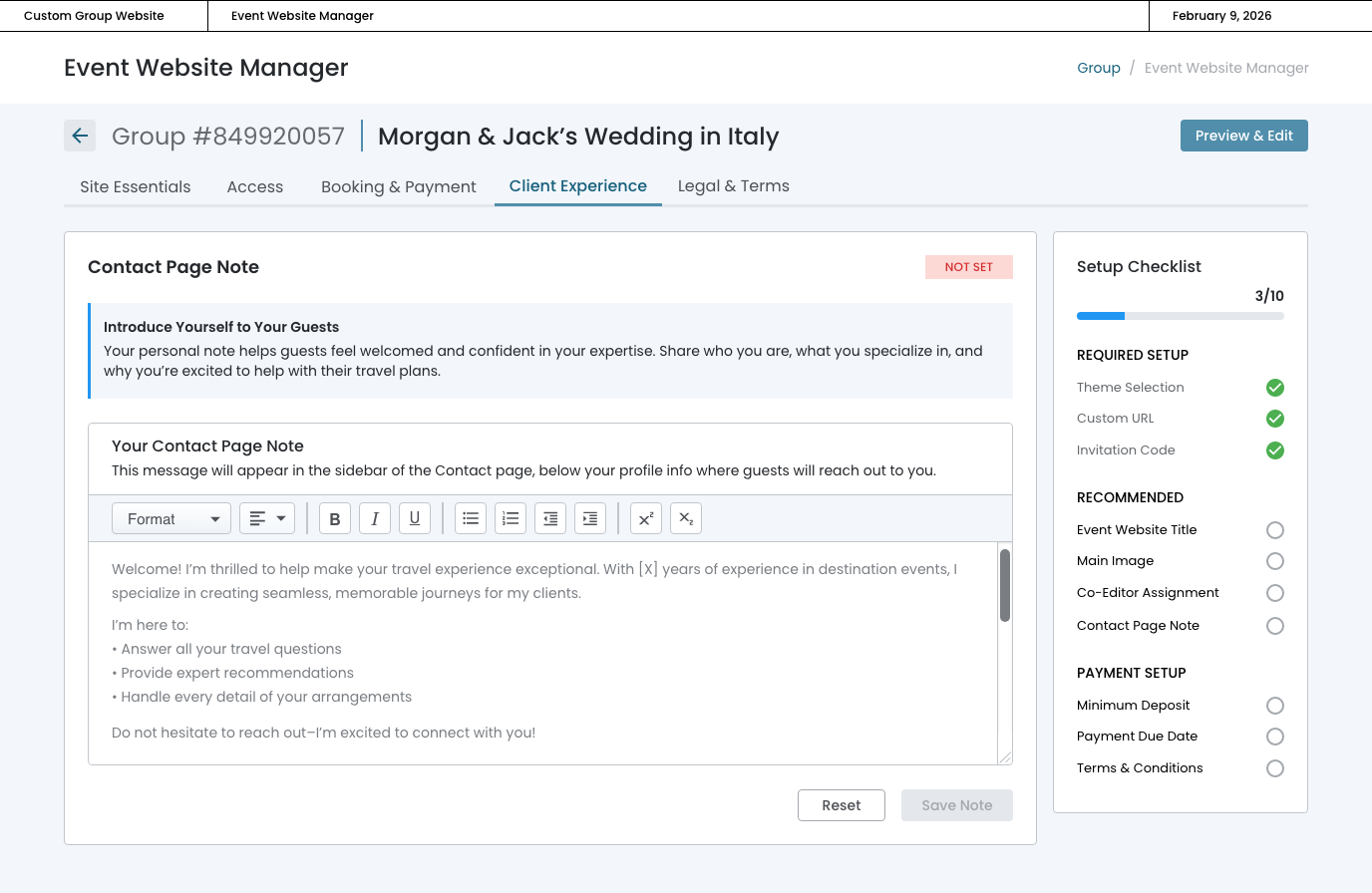
NOT SET STATE
- Contact Page Note title ‐ Tells users where this will appear.
- Info box with "Introduce Yourself to Your Guests" ‐ Explains the purpose and benefits of adding a welcome message.
- Placeholder text ‐ The content works well across all event types (Wedding, Vacation, Corporate) and demonstrates the tone and structure we're suggesting
- "Reset" and "Save" buttons ‐ appear at the bottom.
- "Save Note" button is disabled (grayed out) ‐ prevents saving empty content.
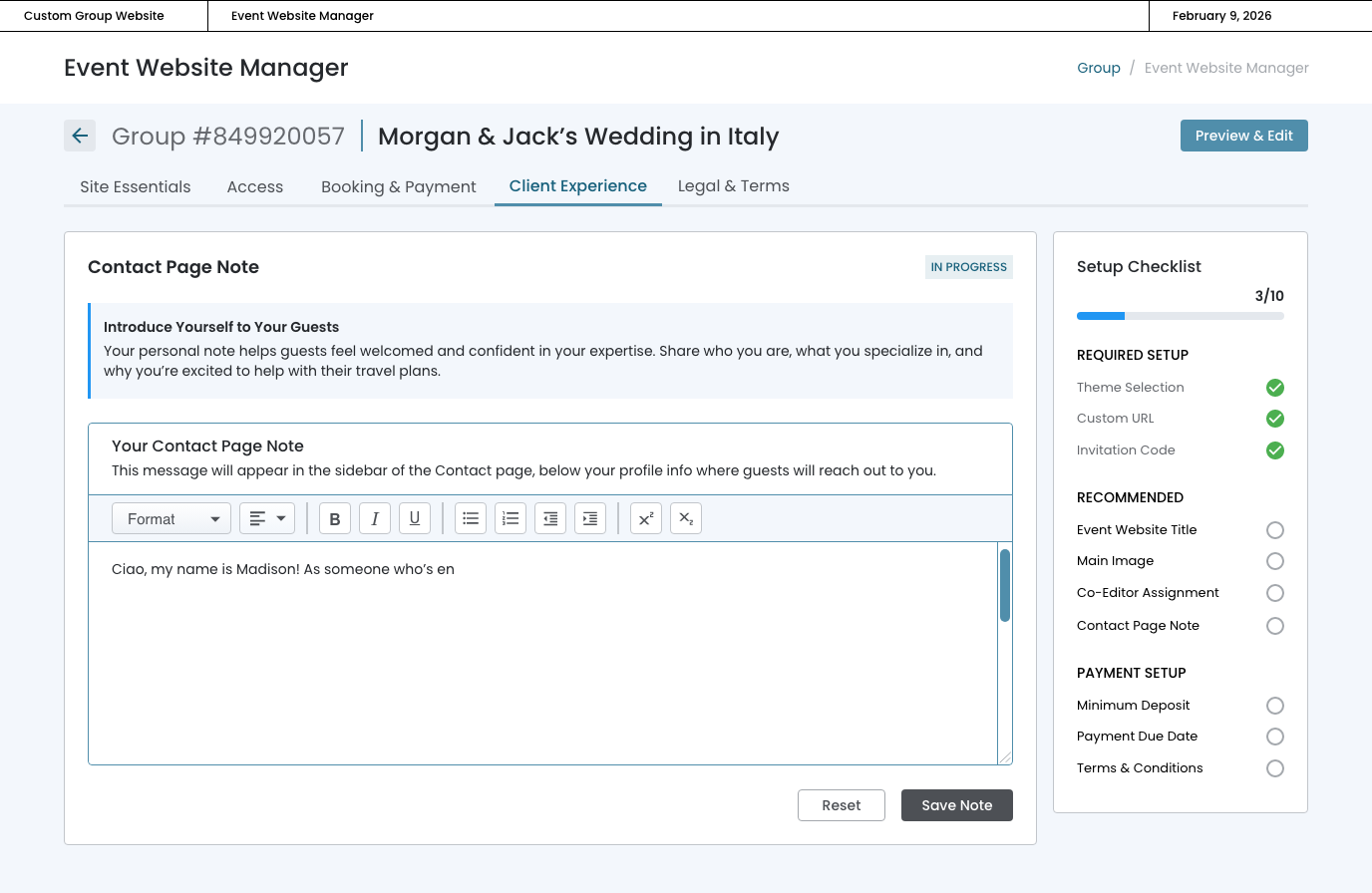
IN PROGRESS STATE – User initiates the experience
- Text editor becomes active
- "IN PROGRESS" badge displays
- "Reset" button allows user to clear text area
- "Save" button is enabled
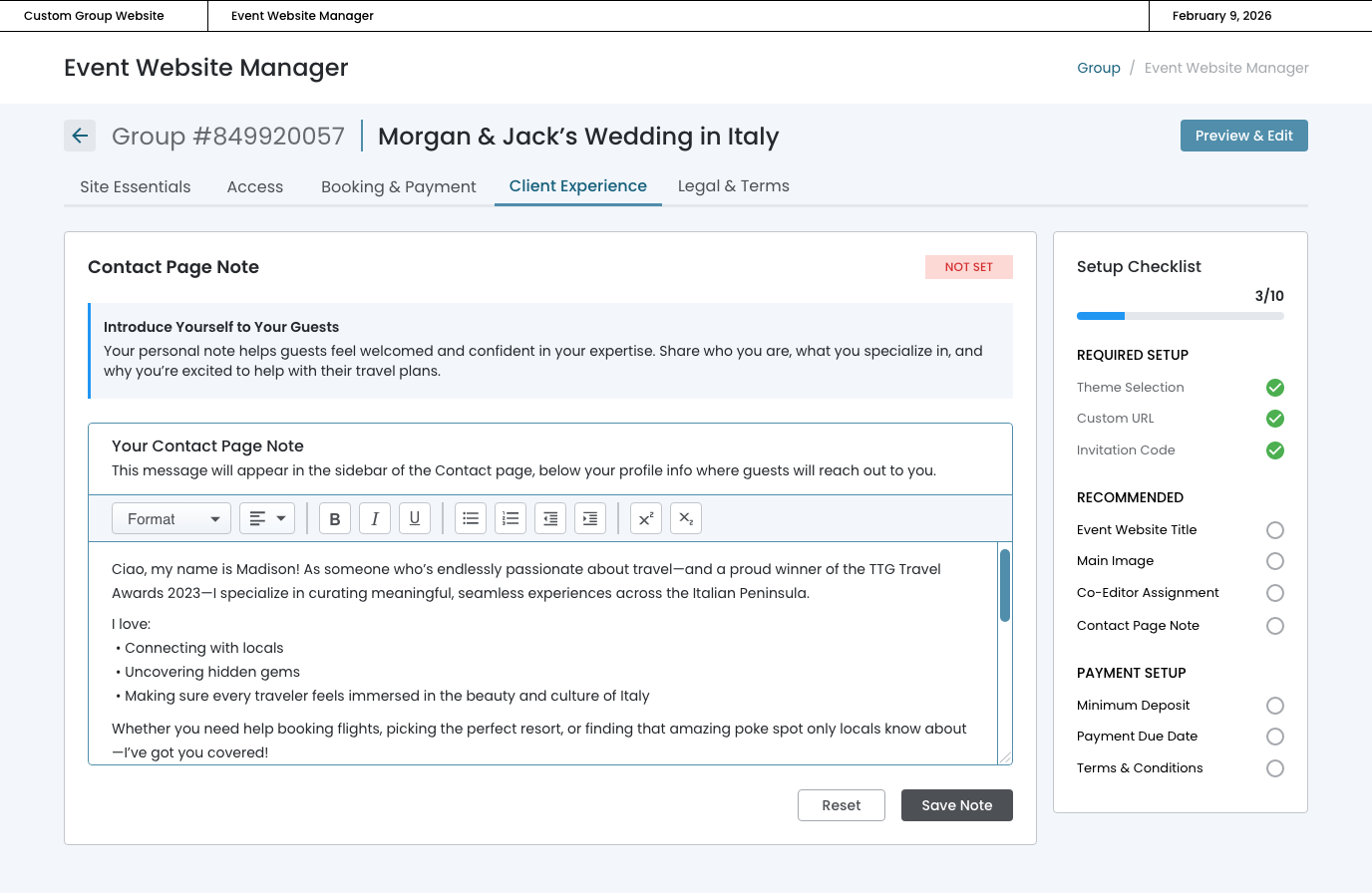
User is finished with entering their note and they proceed to save the note.
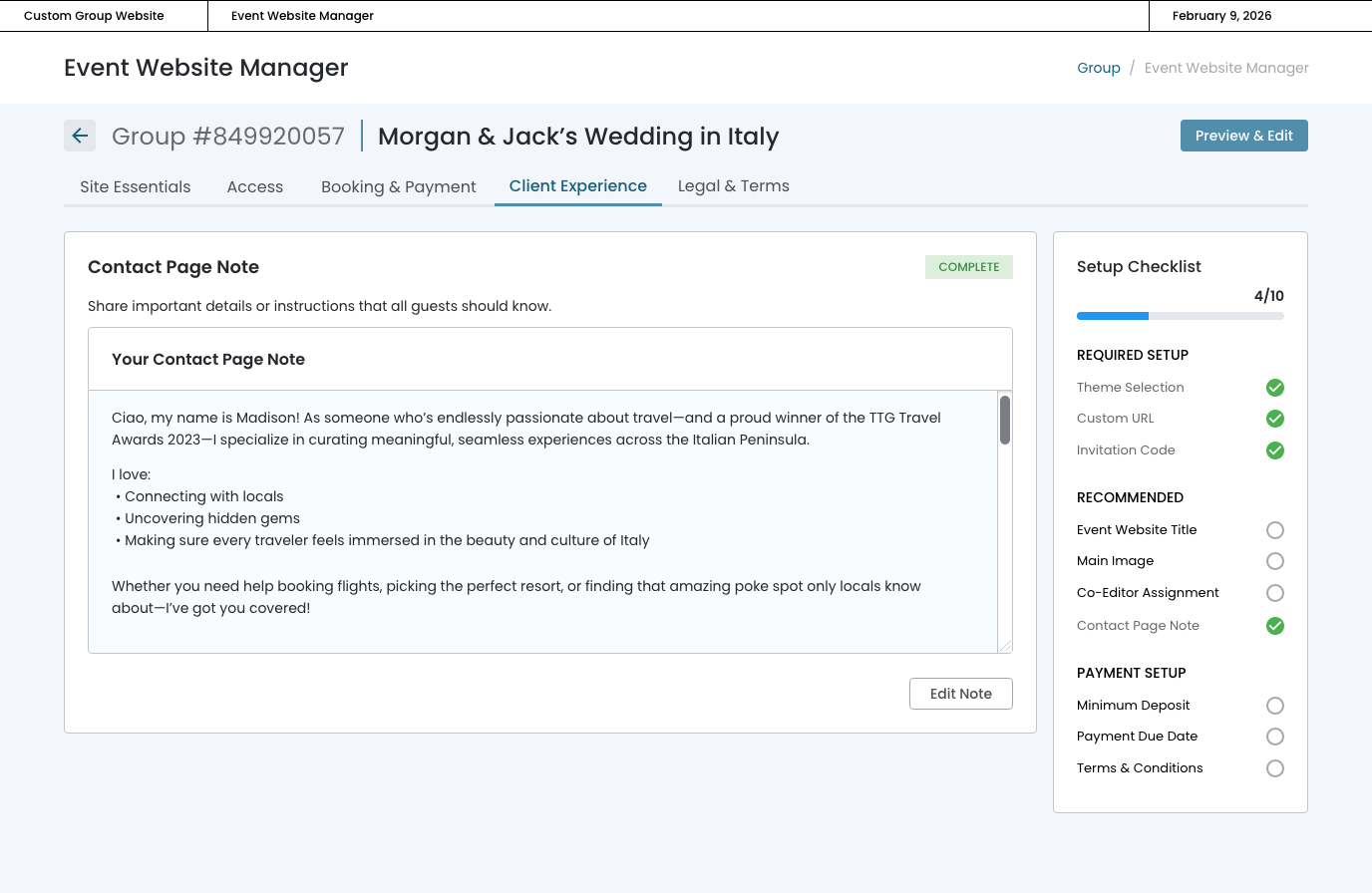
COMPLETE STATE
- Complete badge ‐ Clear visual indicator of success.
- Read-only view ‐ Content is displayed in a non-editable box with light gray background, making it clear this is viewing mode
- Updated description ‐ Changed from the instructional text to: "Share important details or instructions that all guests should know."
- Edit Note button ‐ Single, clear action to modify content. Good placement at bottom right.
- Checklist updated ‐ "Contact Page Note" now shows green checkmark, and progress moved from 3/10 to 4/10.
- Content preserved ‐ Madison's full text is visible and readable
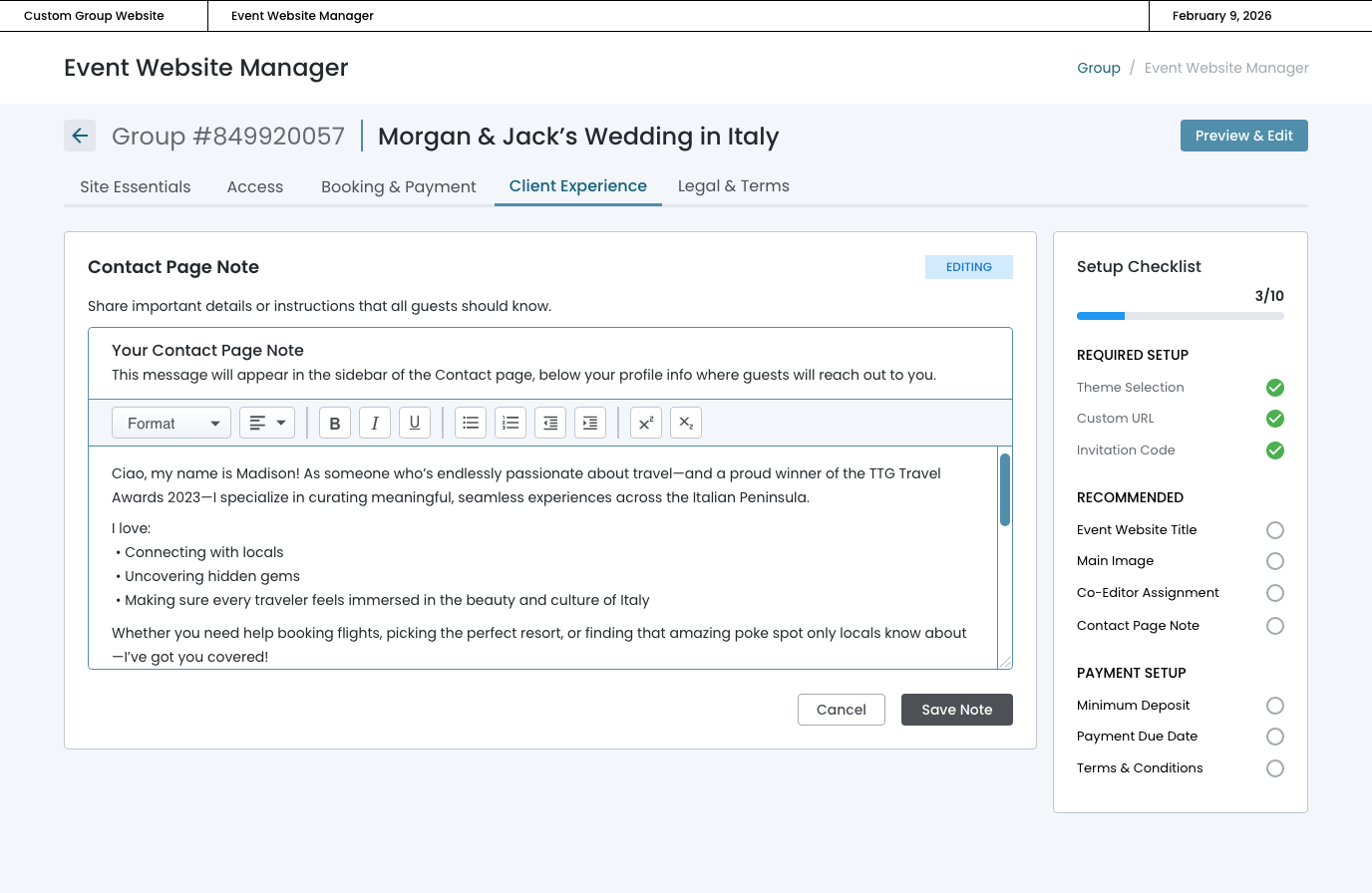
EDITING STATE
- "Editing" badge used specifically when modifying saved content.
- "Cancel" and "Save Note" buttons ‐ appear at the bottom.