Reorder Panel
Drag-and-drop section ordering for the event website editor.
In this page
March 20th, 2026
The Entry State
Reorder Panel
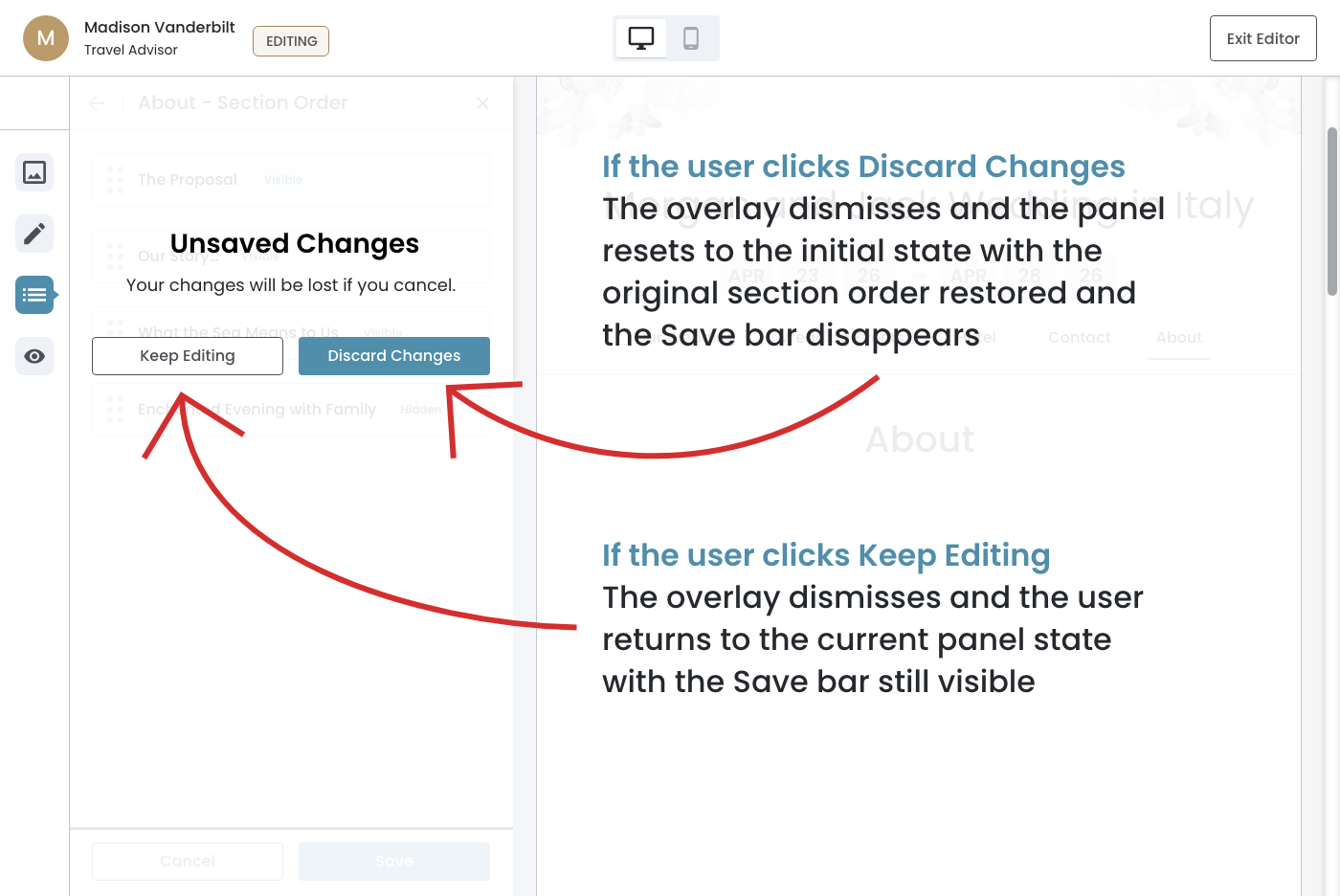
Allows the travel advisor and co‐editor to change the display order of sections:
- Accessible from the list icon in the sidebar
- User navigates to the Reorder Panel
- Selects an editable page – Our Wedding, Wedding Events, or About
March 20th, 2026
Reordering Workflow
01. Initial State
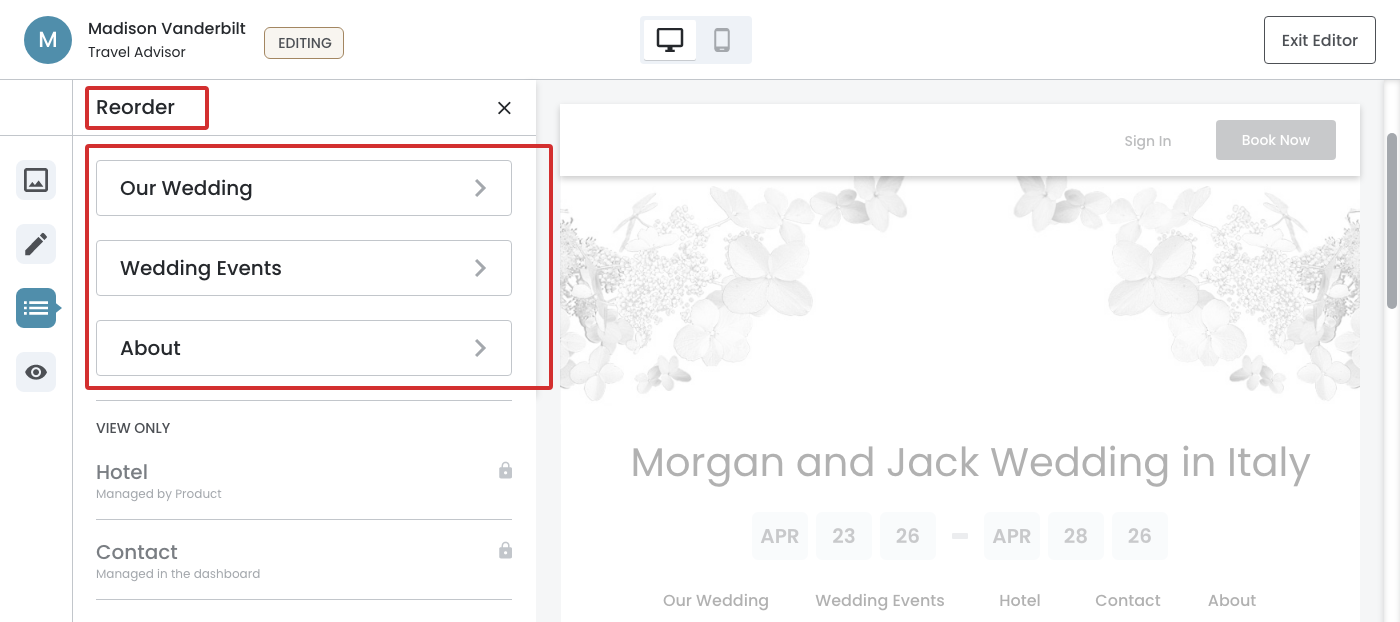
- The Section Order panel opens, displaying all sections for that page as cards
- Each card shows the section title and its visibility status ‐ Visible or Hidden
- Each card displays a six‐dot drag handle (⋮⋮) on the left side
- The drag handle is a universal affordance signaling "I can be moved"
- The Save bar is not visible in the initial state
Dev Note: Click on the "See Design" button to see the hover effects.
02. Interaction State
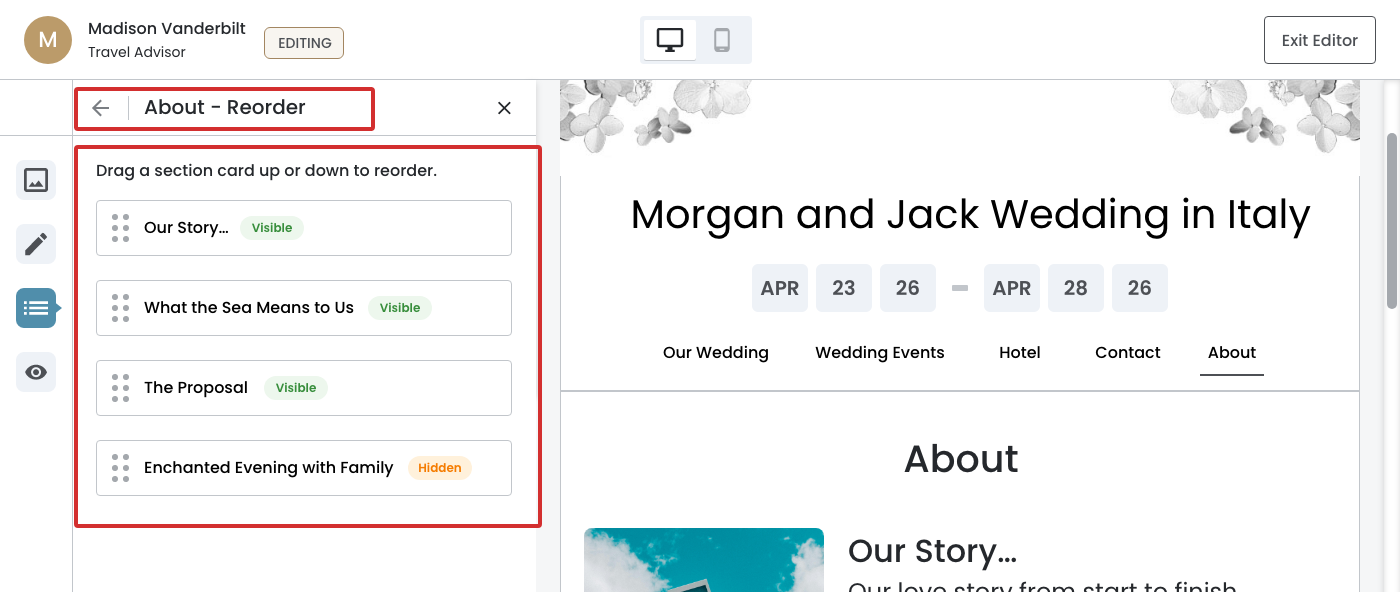
- User PRESSES and HOLDS a section card to begin dragging
- A move cursor icon (✥) appears on the card
- The selected card lifts with a subtle shadow indicating elevation change
- The card background changes to a teal tint indicating it is picked up and active
- The card border changes to 2px weight and a teal color
- The Save bar slides up from the bottom of the panel
03. Mid‐Drag State
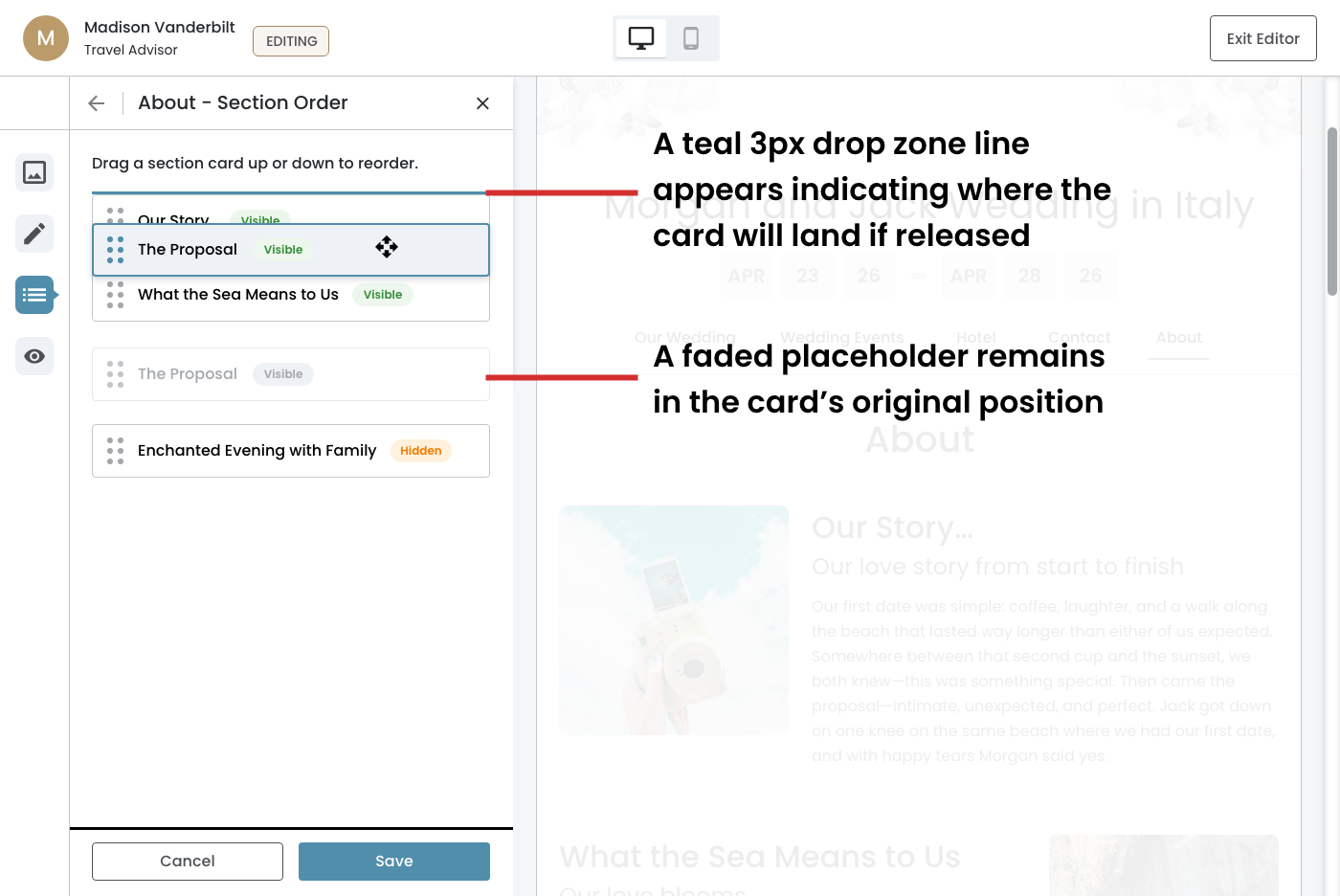
- The selected section card follows the cursor smoothly as the user drags it up or down the list
- A teal 3px drop zone line appears indicating where the card will land if released
- Other section cards shift in real time to make space as the dragged card moves past them
- A faded placeholder remains in the card's original position
- The Save bar remains visible at the bottom of the panel
04. Boundary Drag State
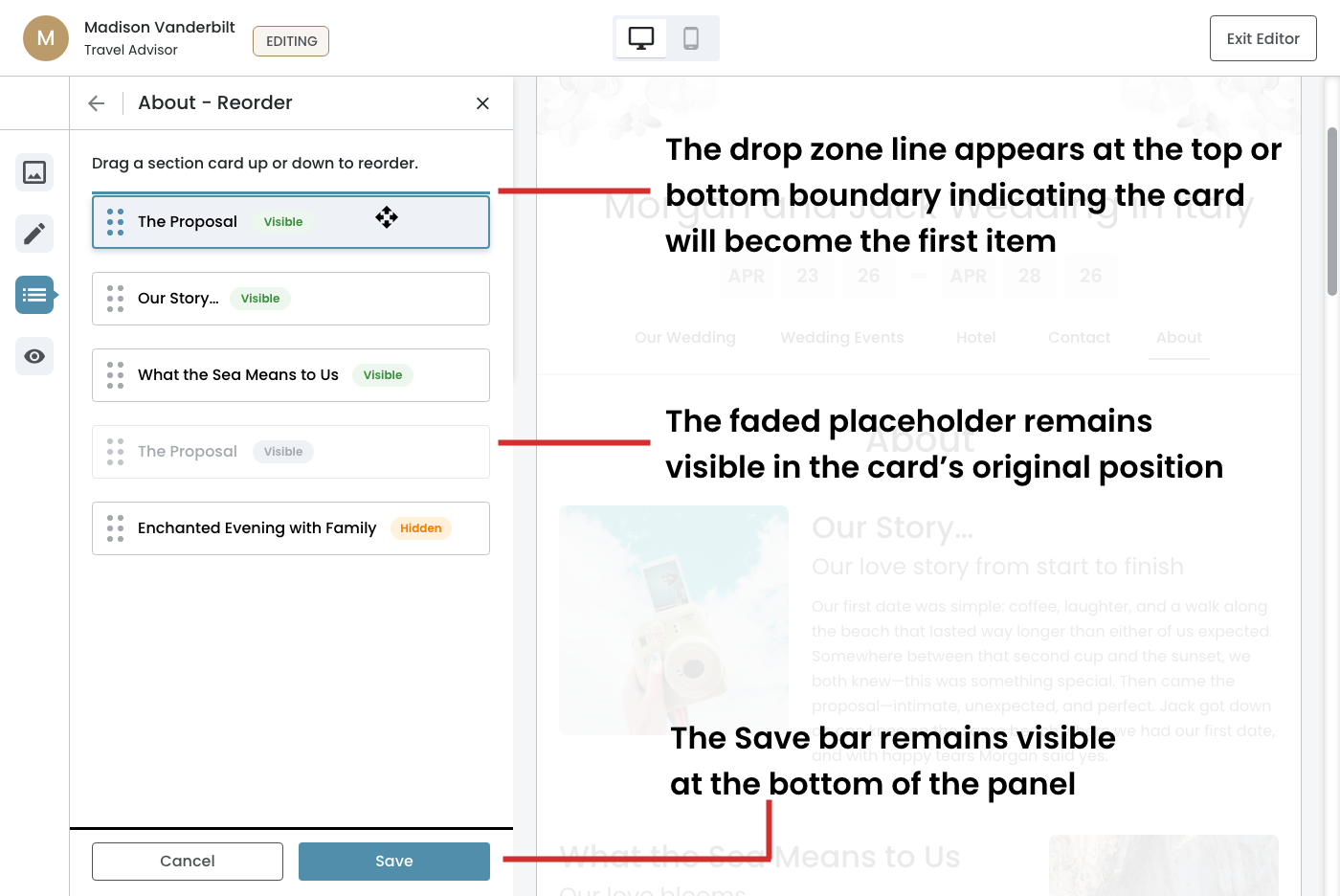
- User drags the selected card to the top edge of the list
- The drop zone line appears at the top or bottom boundary indicating the card will become the first or last item if released
- Other section cards have fully shifted to accommodate the new position
- The faded placeholder remains visible in the card's original position
- The Save bar remains visible at the bottom of the panel
05. Drop State
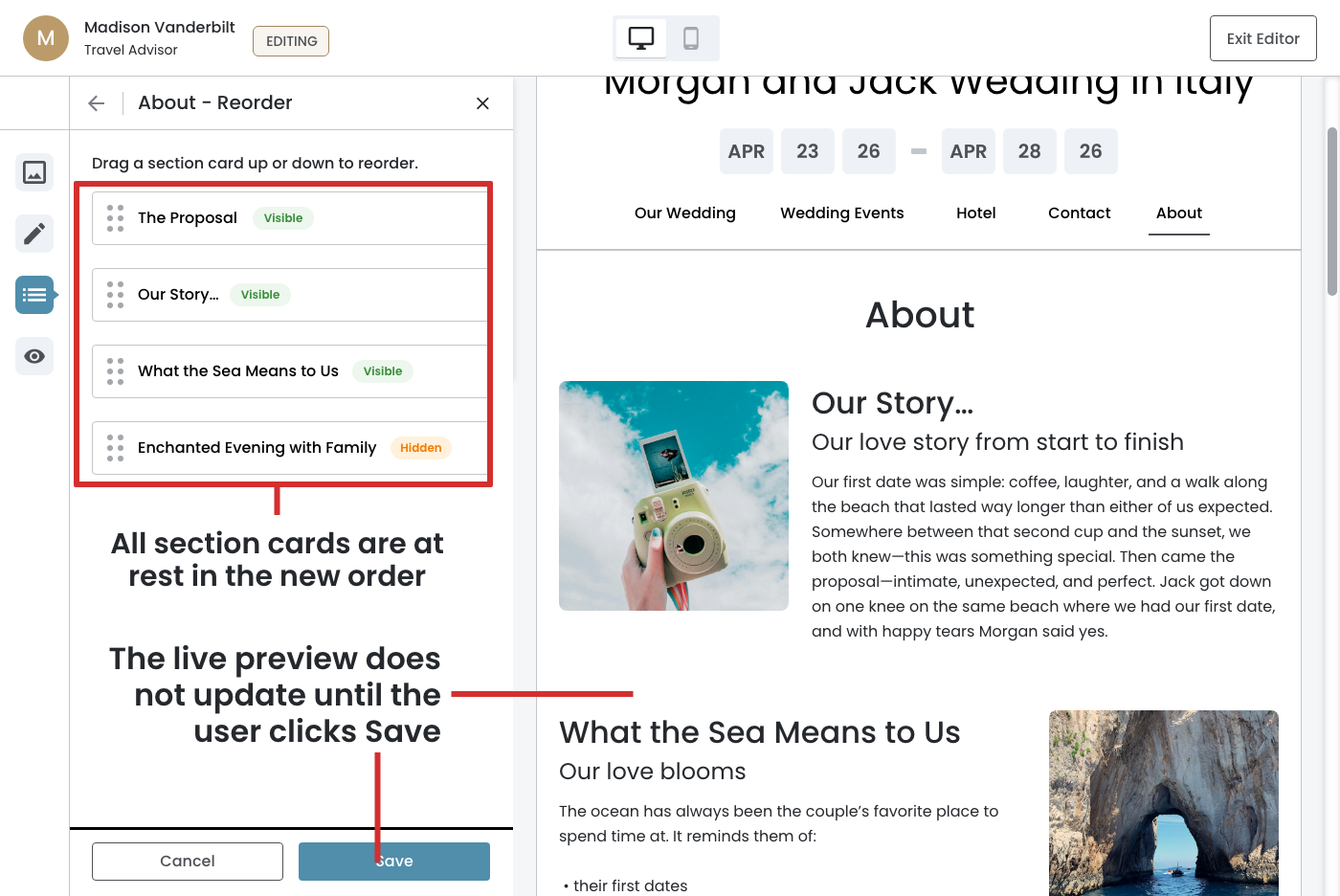
- User releases the card at the desired position
- The card snaps into its new position and returns to its default style – no elevation, no blue tint, no move cursor
- The faded placeholder disappears
- All section cards are at rest in the new order
- The live preview does not update until the user clicks Save
- The Save bar remains visible at the bottom of the panel
06. Saved State
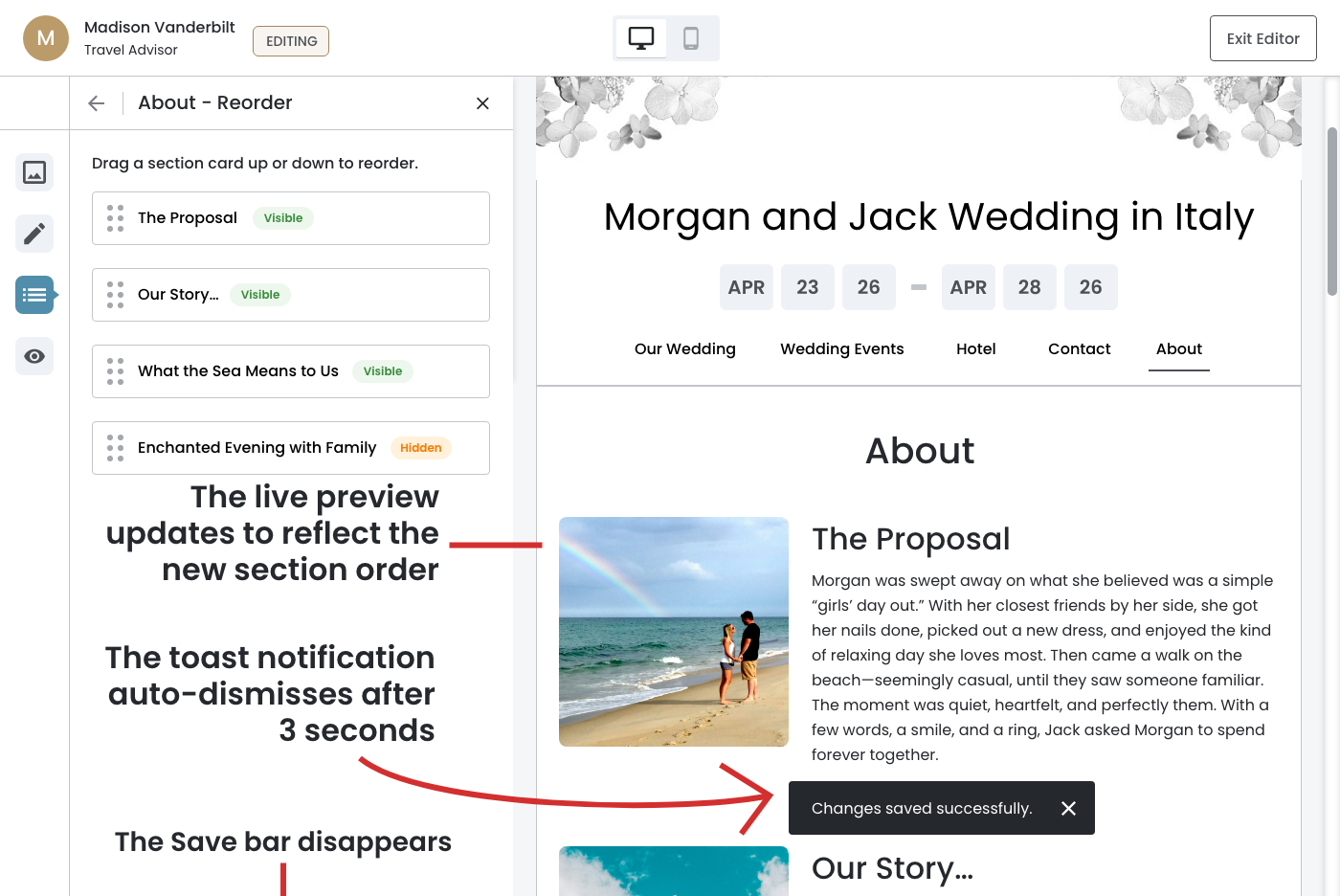
- User clicks the Save button in the Save bar
- The Save bar disappears
- The live preview updates to reflect the new section order
- A toast notification appears in the bottom right of the preview area with the message "Changes saved successfully."
- The toast notification auto‐dismisses after 3 seconds
- The panel returns to the initial state with cards at rest in the new saved order
March 20th, 2026
Cancel Flow
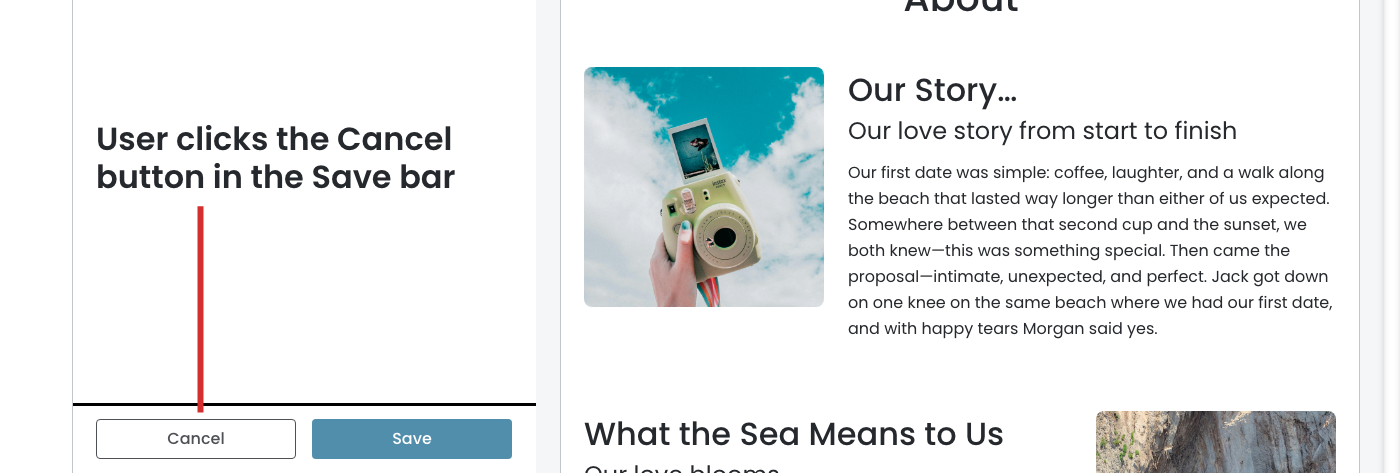
01. Initiation
- User clicks the Cancel button in the Save bar
02. Confirmation Overlay
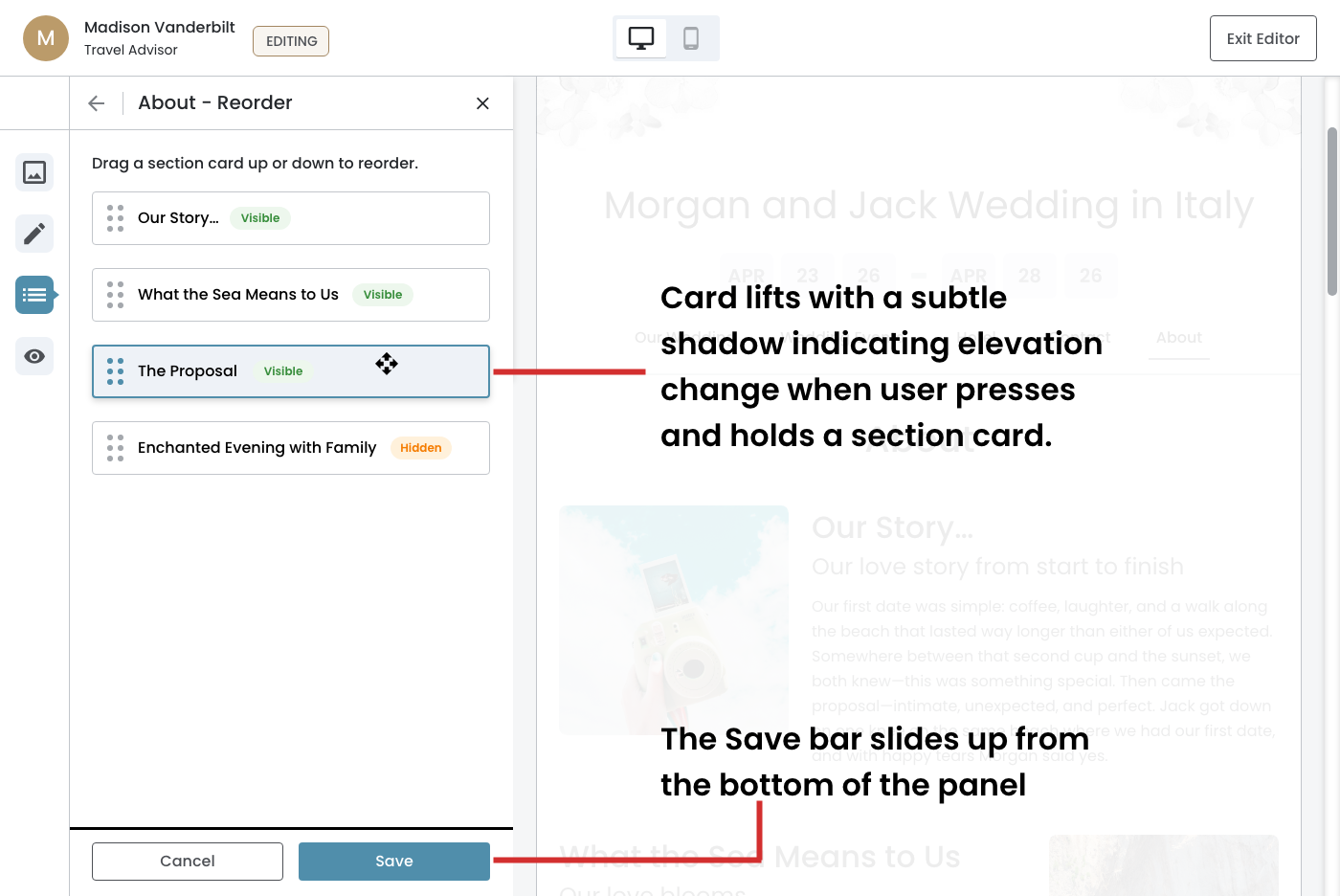
- The Unsaved Changes confirmation overlay appears inside the panel
- The overlay displays the title "Unsaved Changes" and the message "Your changes will be lost if you cancel."
Two Actions:
- Keep Editing – the overlay dismisses and the user returns to the current panel state with the Save bar still visible
- Discard Changes – the overlay dismisses and the panel resets to the initial state with the original section order restored and the Save bar disappears