The Event Site Zone
The second of two zones that make up the event site experience.
In this page
April 6th, 2026
The Second Zone
Where Everything Else Lives
Once a guest has passed through the Gateway Zone by entering their invitation code, they enter the Event Site Zone. This zone contains all components related to authentication and account management. These components are accessible via the header and are intentionally separated from the Gateway Zone.
April 6th, 2026
Sign In Page
Welcome Back
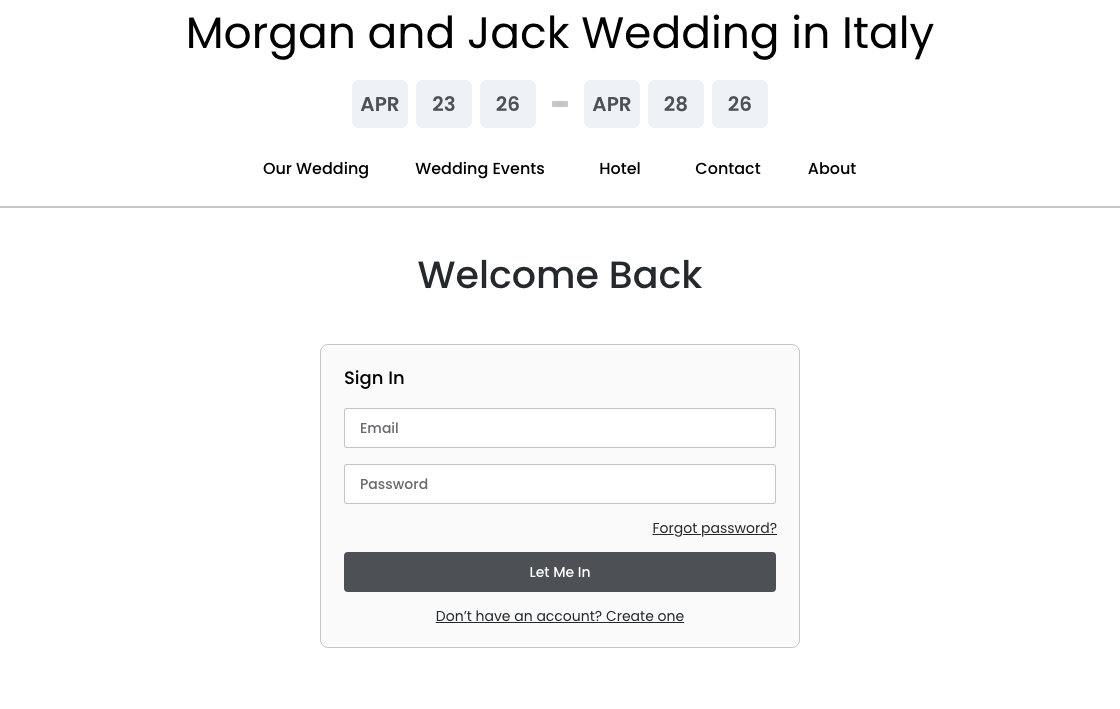
The Sign In page uses "Welcome Back" which maintains the warm, event‐branded tone established in the Gateway Zone. The primary button reads "Let Me In," which carries forward the personality of the experience without being overly casual. A "Forgot password?" link sits below the password field, and a "Don't have an account? Create one" link sits below the primary button, giving guests a clear path forward without cluttering the page.
Intial Step
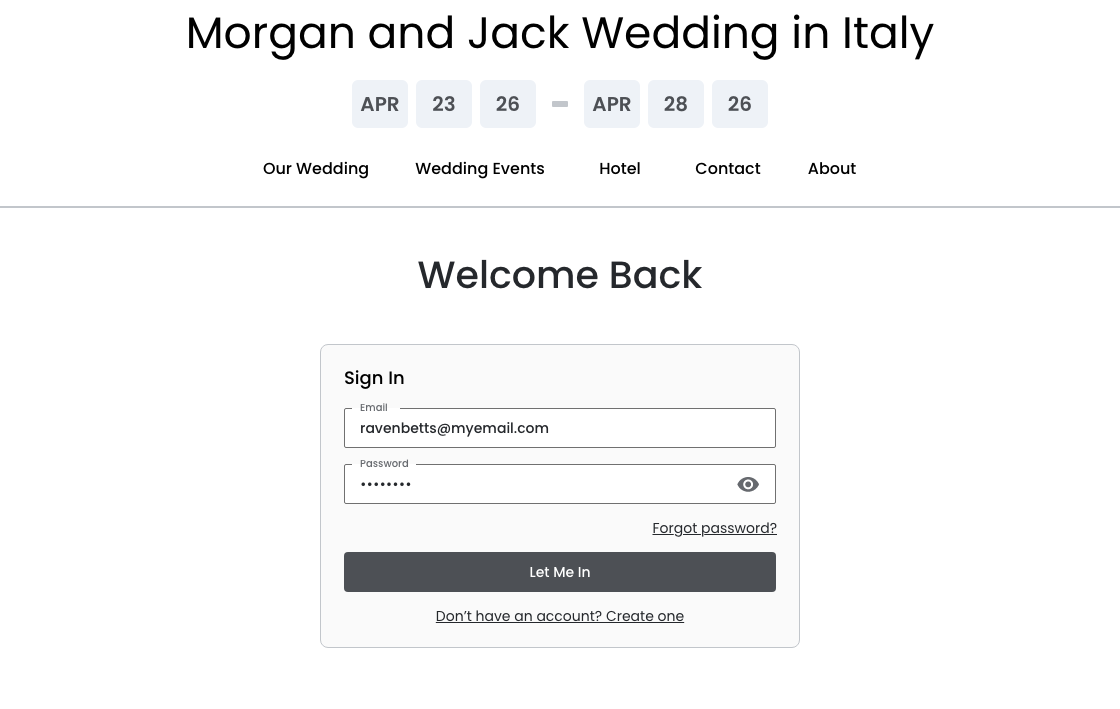
Input fields populated
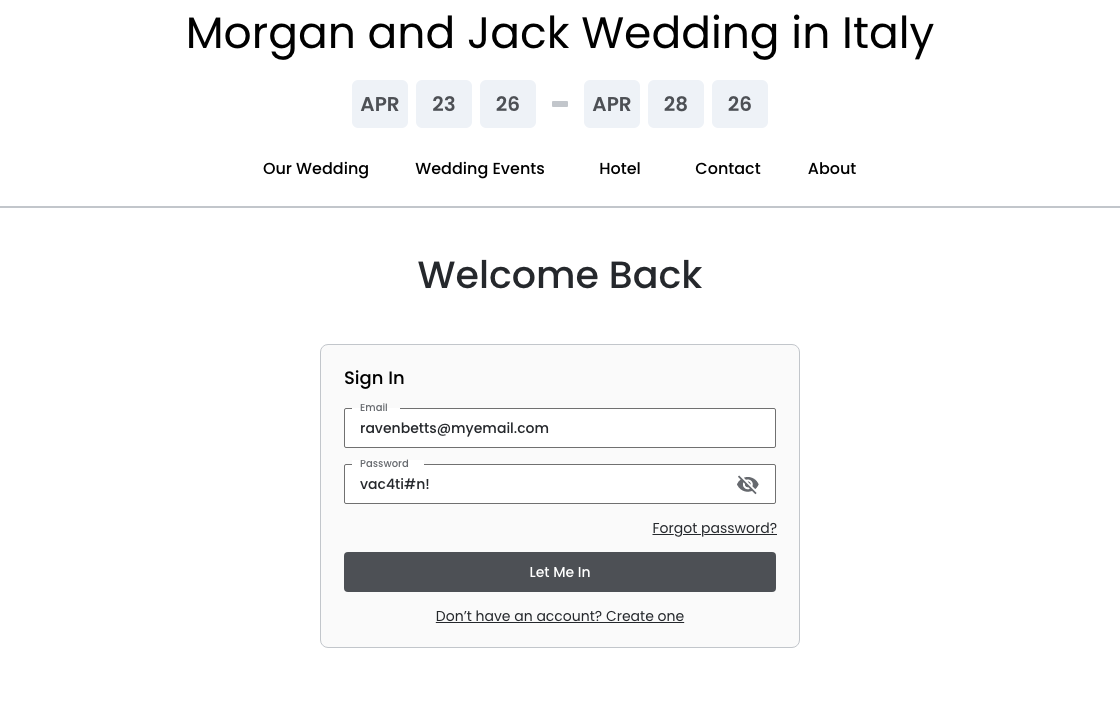
Show Password
April 6th, 2026
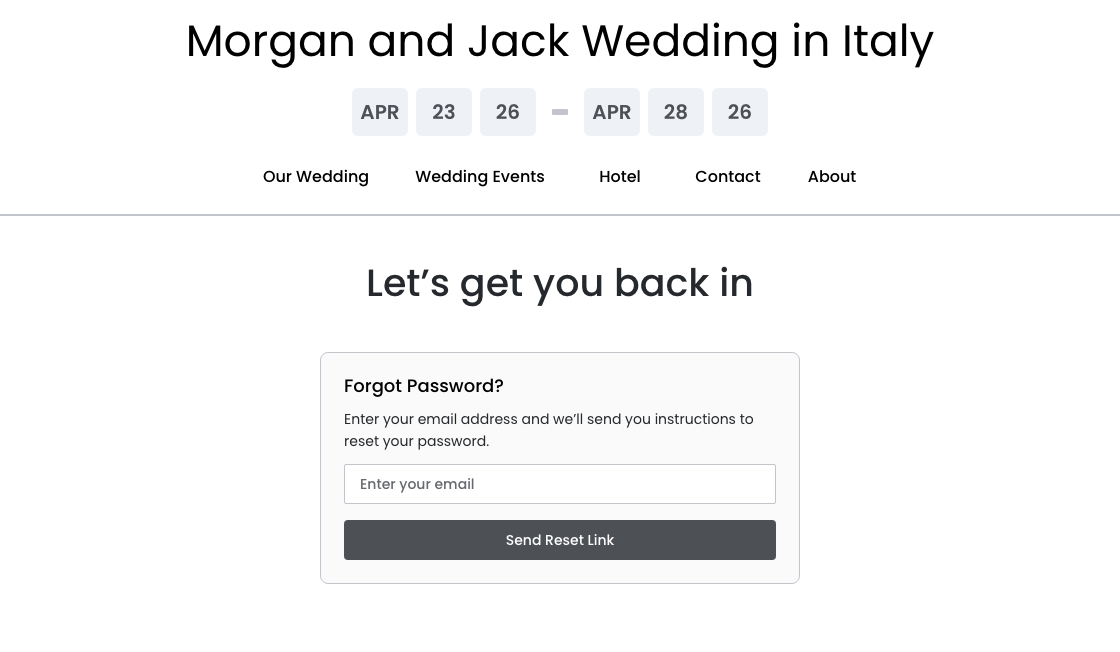
Forgot Password
Let's get you back in
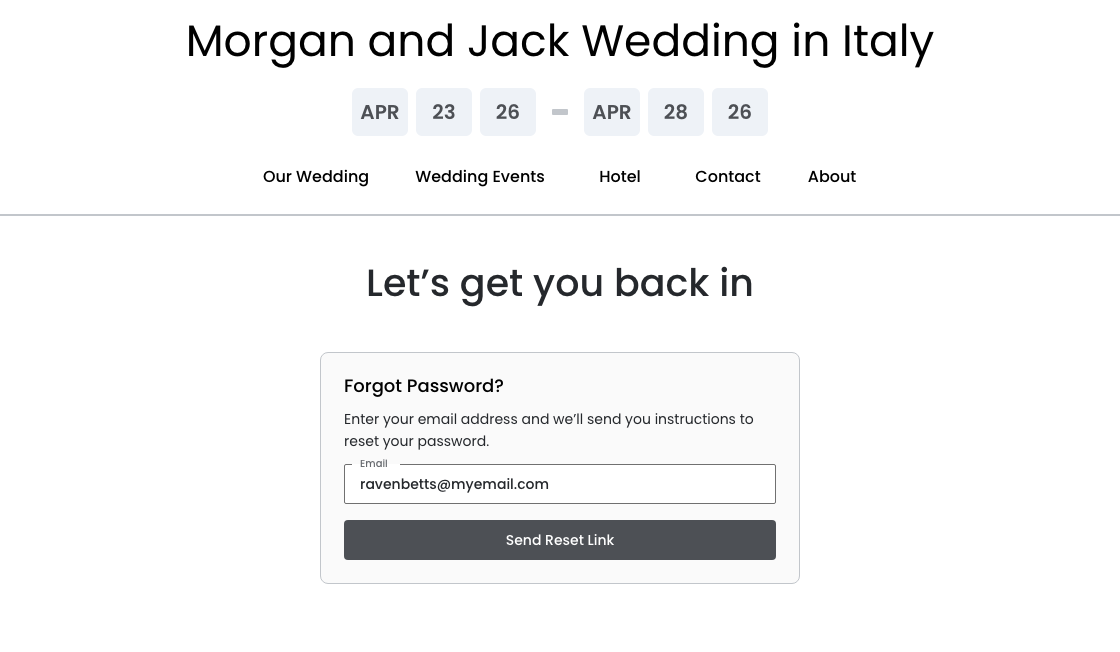
The Forgot Password page reframes a moment of frustration as a supportive nudge. The instructional copy sets the expectation clearly: the guest enters their email and a reset link will be sent. The primary button reads ""Send Reset Link," which is accurate and action‐oriented without being formal..
Intial Step
Input field populated
April 6th, 2026
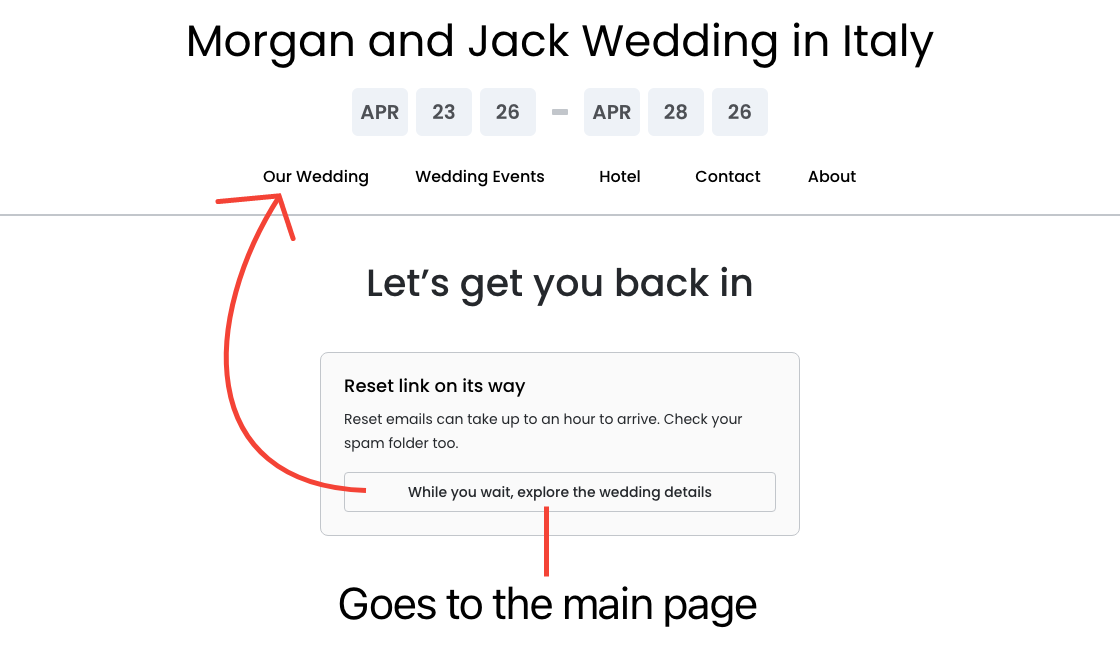
Forgot Password — Confirmation State
Let's get you back in
After the guest submits their email, the card transforms into a confirmation state without navigating away from the page. The page title remains "Let's get you back in" for continuity. Because reset emails can take up to an hour to arrive, the confirmation copy is honest about that expectation. A button invites them back into the event site to explore the wedding details while they wait.
April 6th, 2026
Reset Password
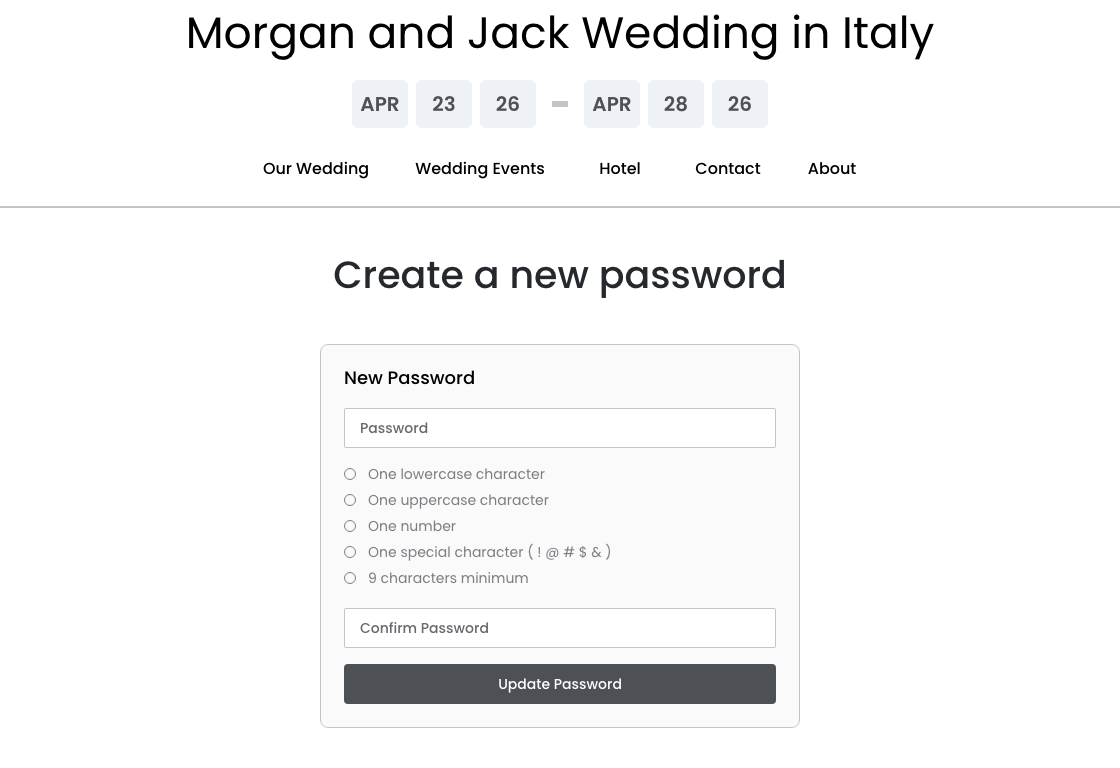
Create a new password
This page is reached when the guest clicks the reset link in their email. The page title "Create a new password" is clear and forward‐looking – it tells the guest exactly what this page is for without any ambiguity. The card contains a New Password field, a Confirm Password field, and an Update Password button.
Requirements State: Neutral
Password requirements are displayed in a neutral state before the guest begins typing, using empty circles as indicators.
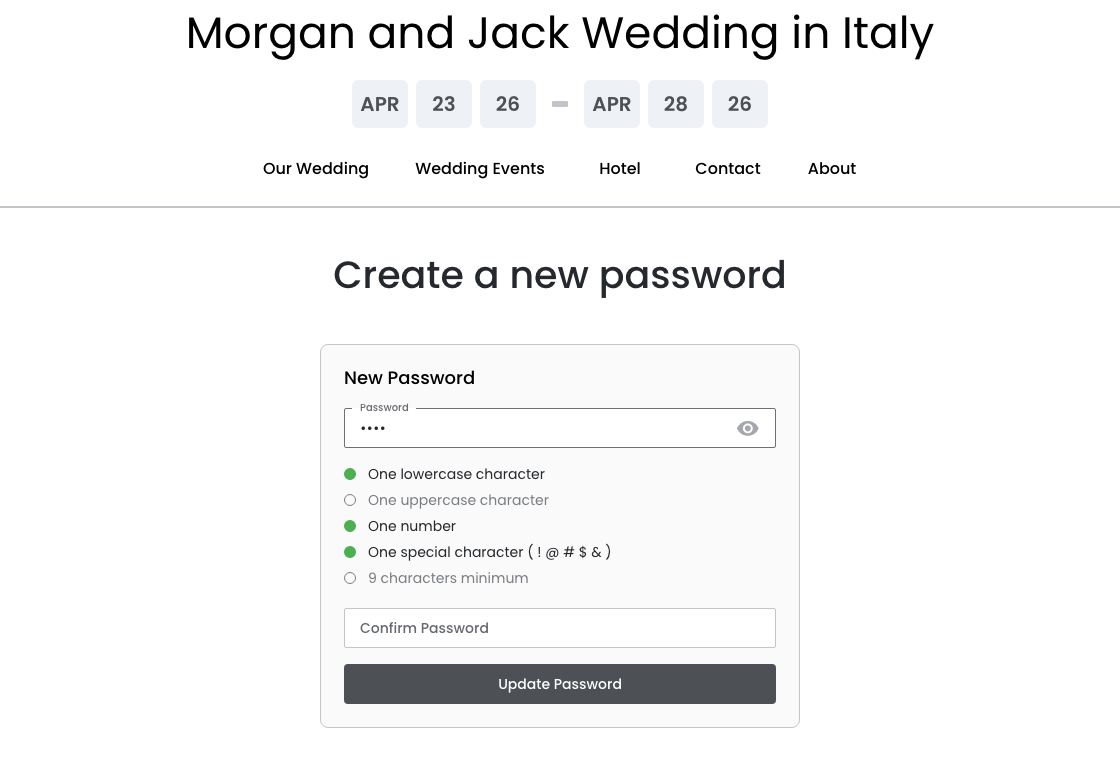
Requirements: 3 Rules Satisfied
As the guest types, requirements update in real time – turning green as each rule is satisfied.
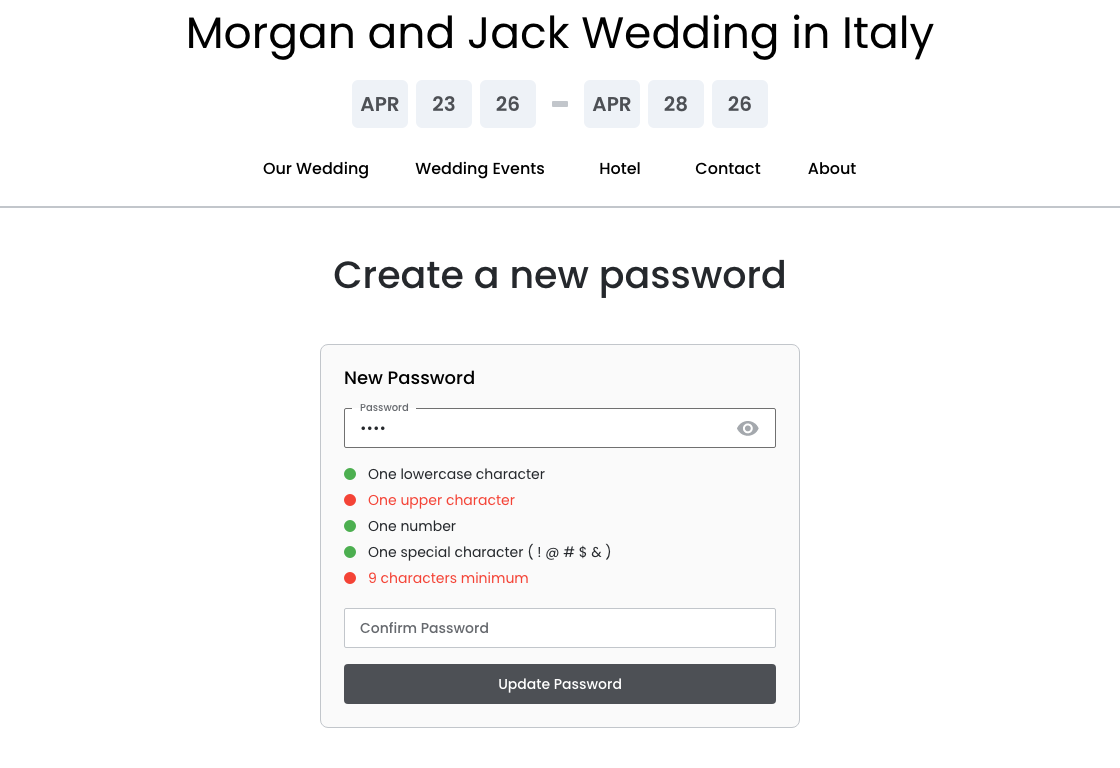
Requirements: 2 Rules Unmet
Unmet requirements ONLY turn red after the guest leaves the field, avoiding the discouraging experience of seeing failures before they have even begun.
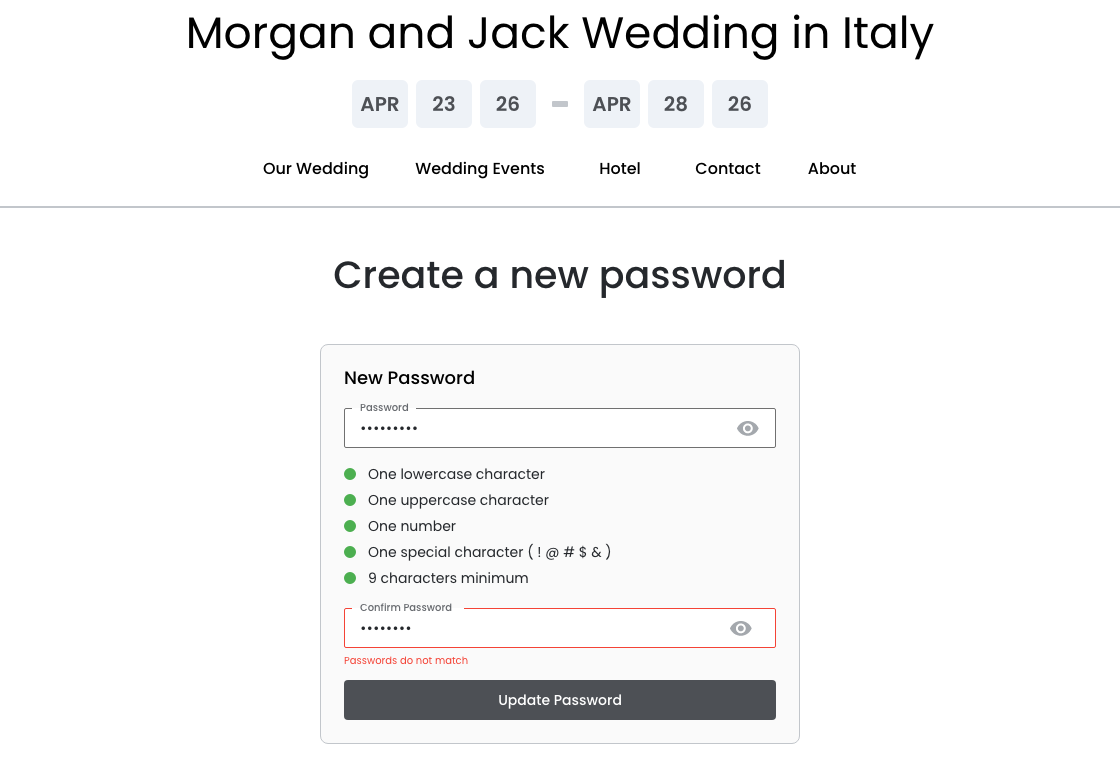
Passwords do not match
April 6th, 2026
Create Account
You're almost there
The Create Account page can be reached two ways:
- The Book Now modal — when a guest chooses to create an account
- The Sign In page — via the "Don't have an account? Create one" link
Regardless of how the guest arrives, the context is the same: they are ready to commit to the experience. The page title "You're almost there" acknowledges that the guest has already been through something – they entered the site, explored the event, and made a decision to book.
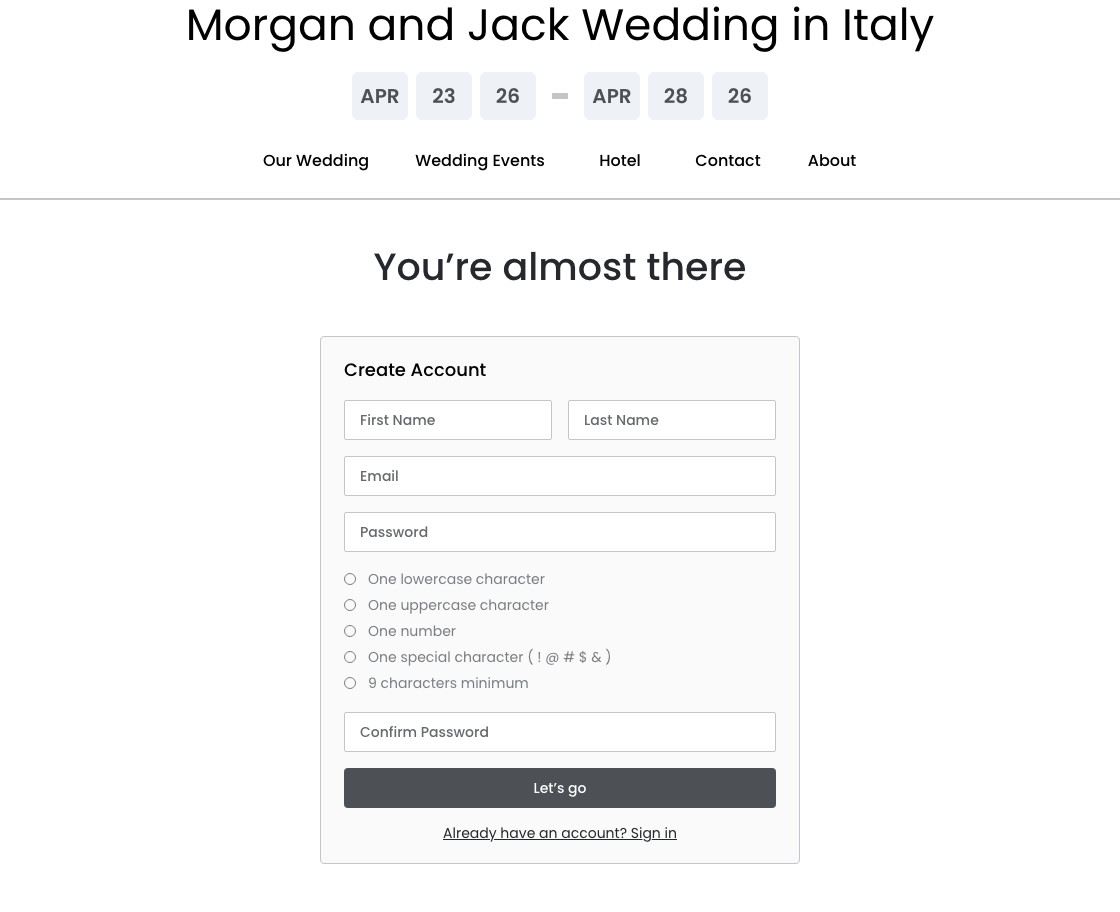
Requirements: Neutral
Password requirements are displayed in a neutral state before the guest begins typing, using empty circles as indicators.
Requirements: 2 Rules Satisfied
As the user types, requirements update in real time – turning green as each rule is satisfied.
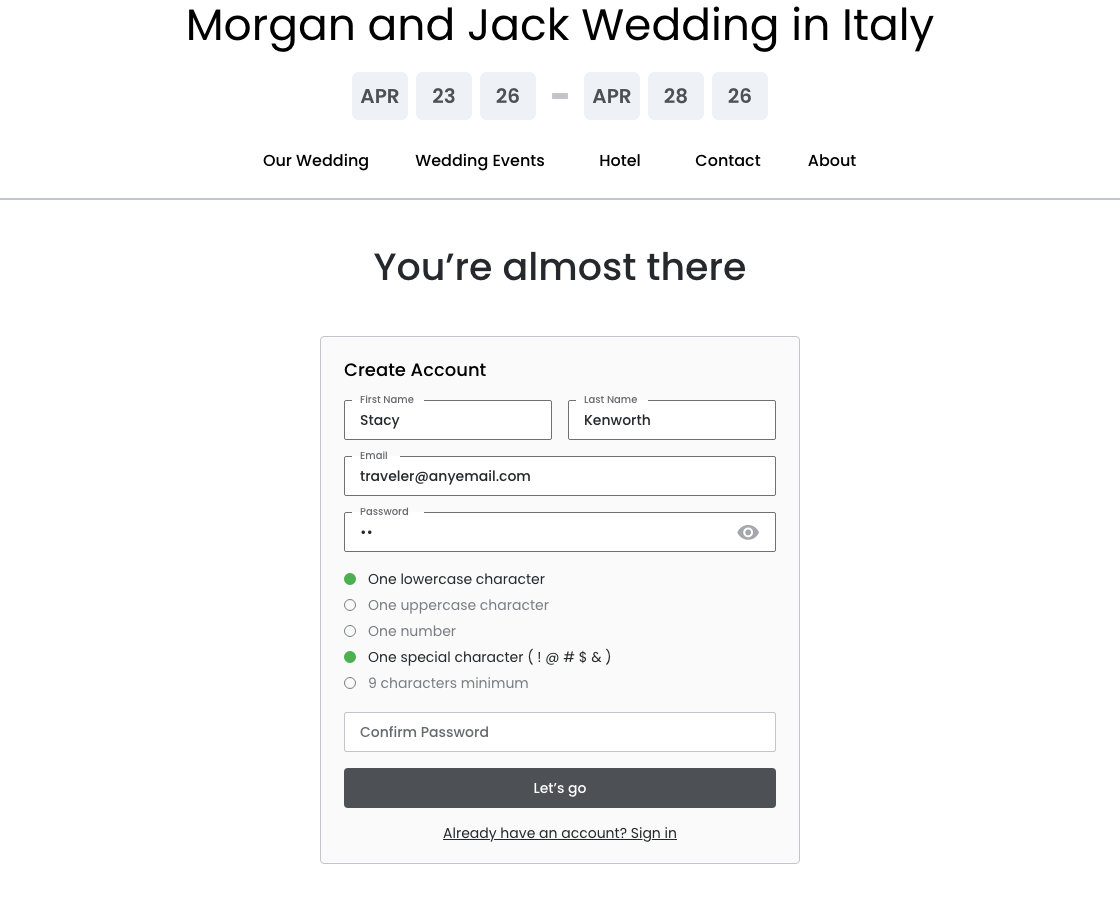
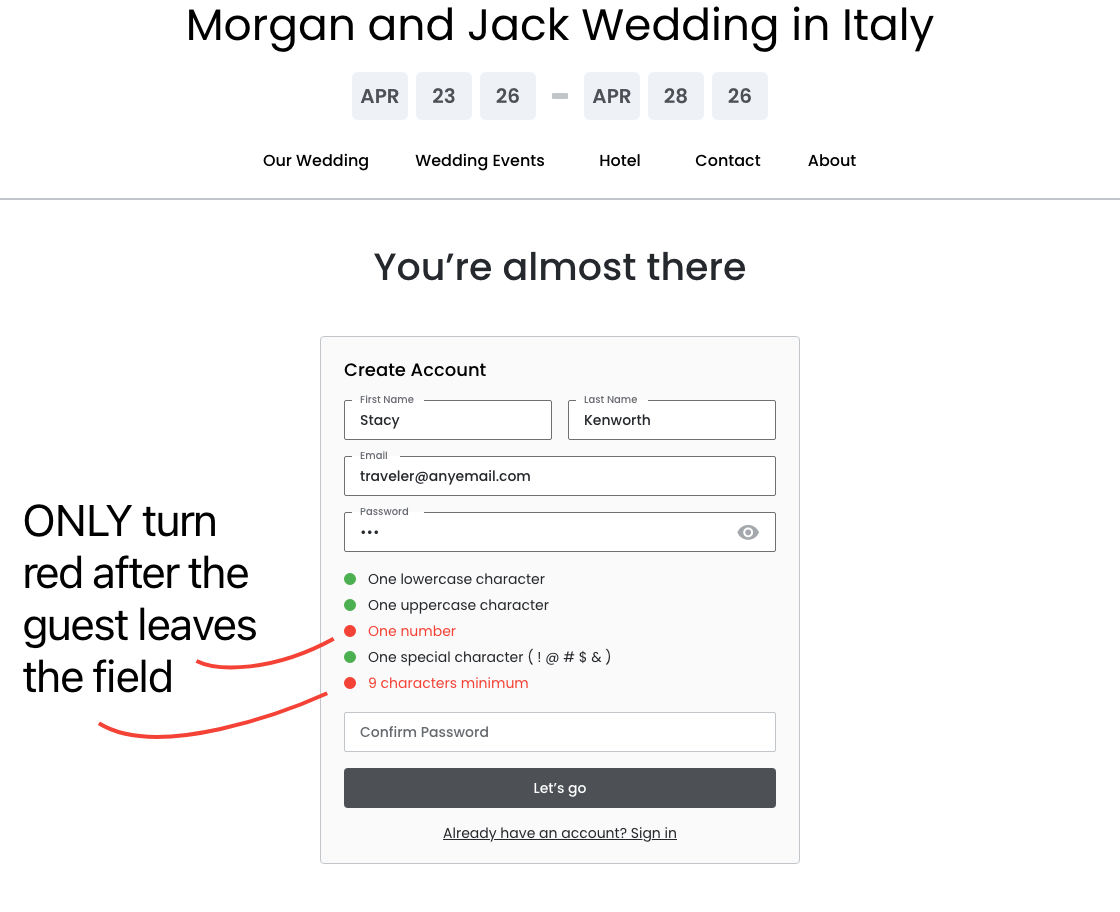
Requirements: 2 Rules Unmet
Unmet requirements ONLY turn red after the guest leaves the field, avoiding the discouraging experience of seeing failures before they have even begun.
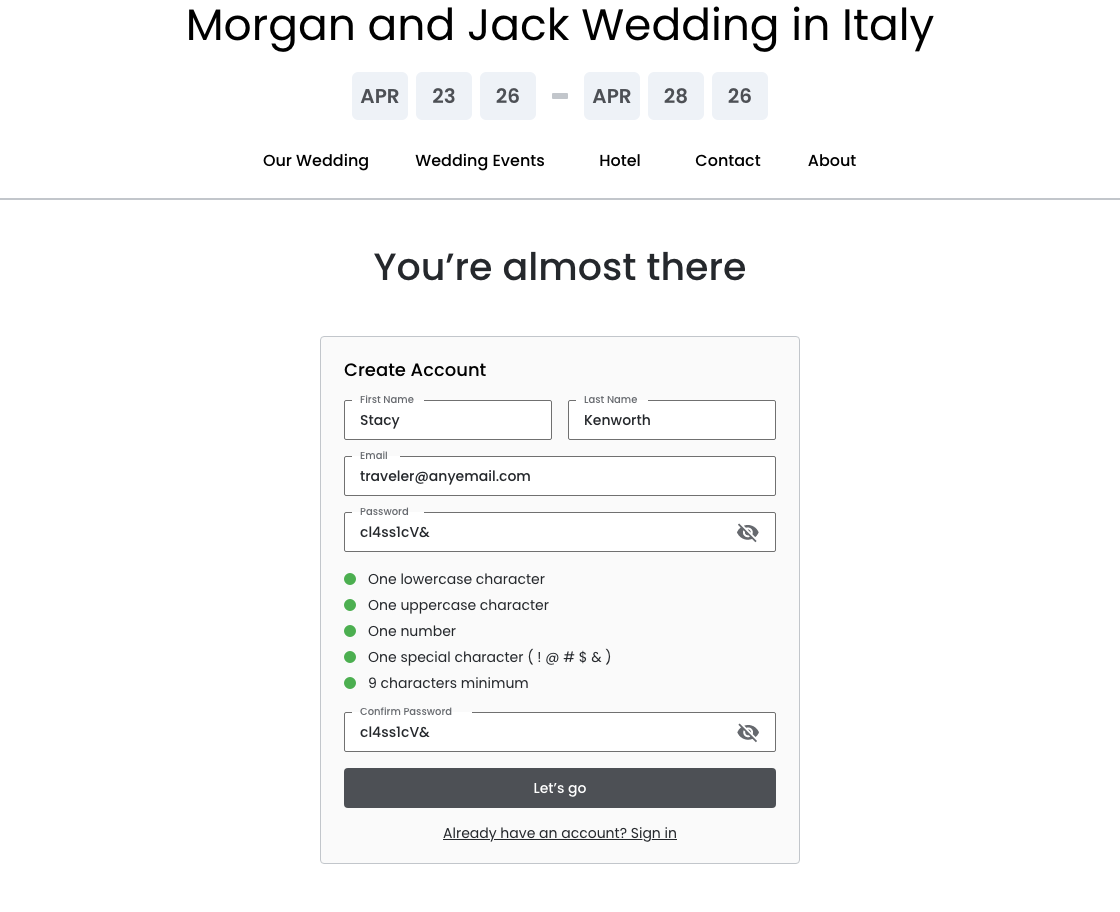
All rules satisfied and passwords are visible.
April 6th, 2026
Create Account — Confirmation State
You're in
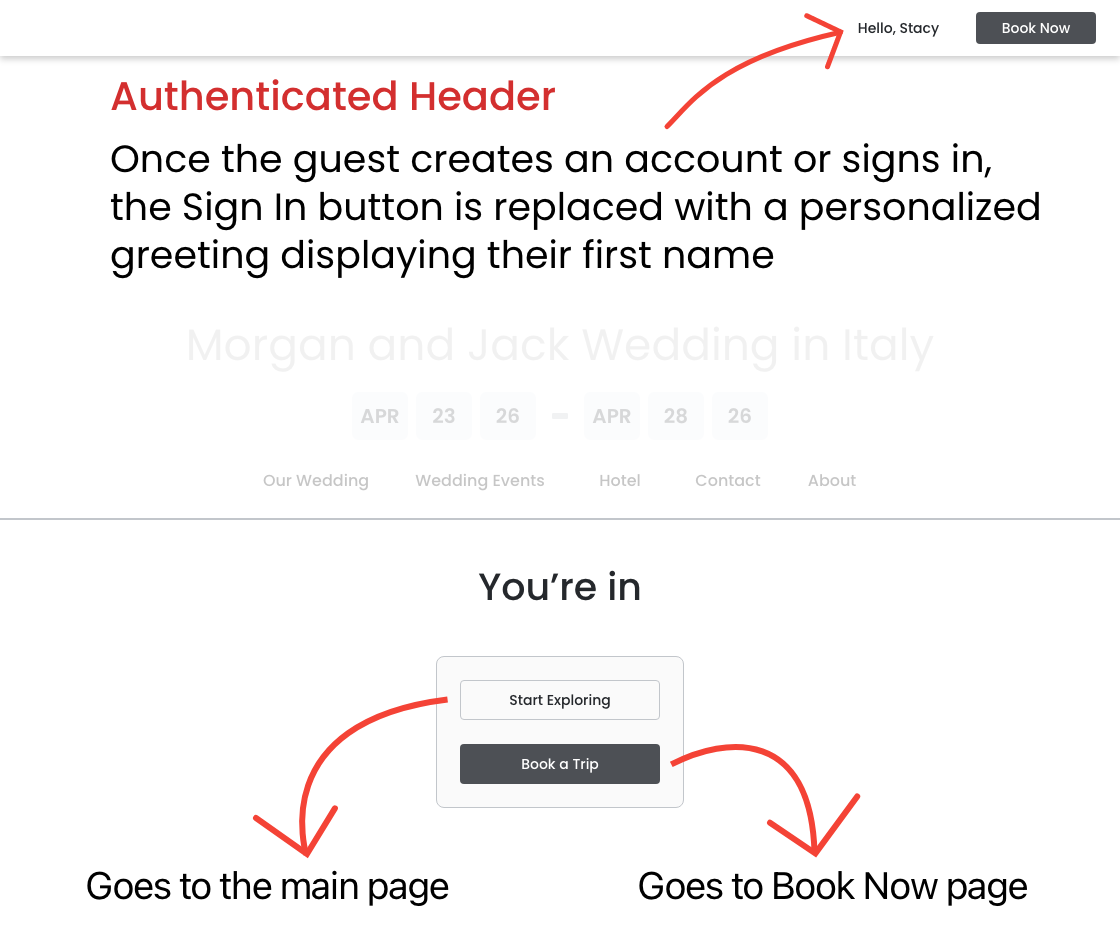
After the guest clicks "Let's go" and the account is successfully created, they are brought to a confirmation state on the same page. The card displays "You're in" – a brief, warm payoff that acknowledges everything the guest has been through to get to this moment. The confirmation gives the guest two clear paths forward:
- "Start Exploring" for guests who want to continue browsing the event Site
- "Book a Trip" for guests who are ready to book immediately.
Authenticated Header State
Once a guest successfully creates an account or signs in, the Sign In button in the header is replaced with a personalized greeting displaying their first name – for example, "Hello, Stacy." This change happens immediately upon authentication and persists throughout the session.
It serves two purposes:
- It confirms to the guest that they are recognized by the system
- It removes the Sign In button from view since it is no longer relevant.